Basics
Controllers
The primary controller is exclusively used for the palette (the collection of tools that sticks close to the primary controller). The secondary controller is used to select tools in the palette and for scene interaction tasks. The current active tool is shown by the mouthpiece on the secondary controller.
By default, the primary controller is left, and secondary is right.
The two buttons on the primary controller are used to undo or redo the last command. The two buttons on the secondary controller are used to duplicate the selected item, and quickly switch tools. The tools switch between selection (blue mouthpiece), deletion (red mouthpiece) and the last used tool (tool’s mouthpiece).

Primary and secondary controllers can be switched in the user settings.
Lobby
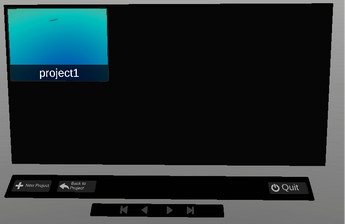
When launching VRtist, the user will arrive in the Lobby. Previously saved scenes will be displayed on the screen facing the user. The user can select one scene to load and edit. Click “new project” to create a new project. This will load a blank scene.
Panels
Features of VRtist use floating panels, all panels can be moved by dragging the top part of the panel. Floating panels’ position is relative to the user’s space and move with him/her. Panels can be snapped together by dragging one next to another, arrows will appear around the other panel.