Camera
The camera tool is used to add a camera in the scene.
To add a new camera, drag the camera model into the scene. A panel displaying the camera’s view will appear showing the point of view of the camera at the position of the camera.
The right panel displays all cameras present in the scene.
The middle panel displays available options for the selected camera.
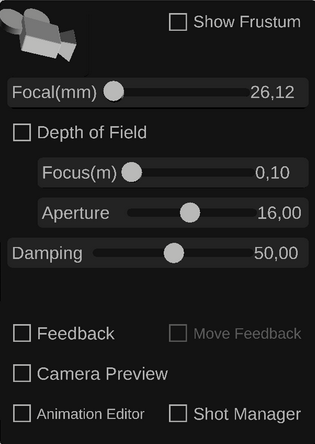
The focal and damping can be directly edited using the sliders.
The focal can also be changed using the slider at the bottom of the camera view panel.
To edit the depth of field, first click the checkbox.
The Focus and aperture can be defined using the sliders.
To define the focus distance, drag the depth-of-field sphere to the desired distance.
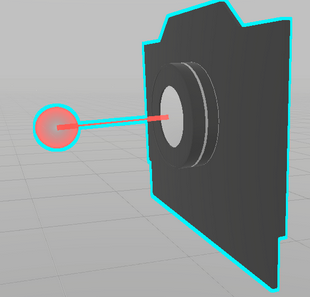
The focus point can also be defined by clicking the target icon on the camera view panel, and selecting the focus point in the camera view.

On the camera view panel, click the  icon to create a snapshot, click the
  to record and export a video.
icon to create a snapshot, click the to record and export a video.The camera can be constrained to other objects. Select the camera panel, and use the selection tool to add a parent or “look at” constraint.
In the same way, the focus point can be constrained to another object by selecting the target sphere and adding a parent constraint.